Assignments help you keep LUY data up to date by turning data update requests into clear, structured tasks with defined ownership. The feature is currently available for pilot customers. When creating an assignment, LUY automatically identifies the appropriate assignees based on responsibility attributes, giving you transparency into who is expected to update each element.
Availability note: Assignments are currently available only for pilot customers. This article describes both the current pilot scope and capabilities planned for the upcoming cloud release. Upcoming capabilities are marked accordingly.
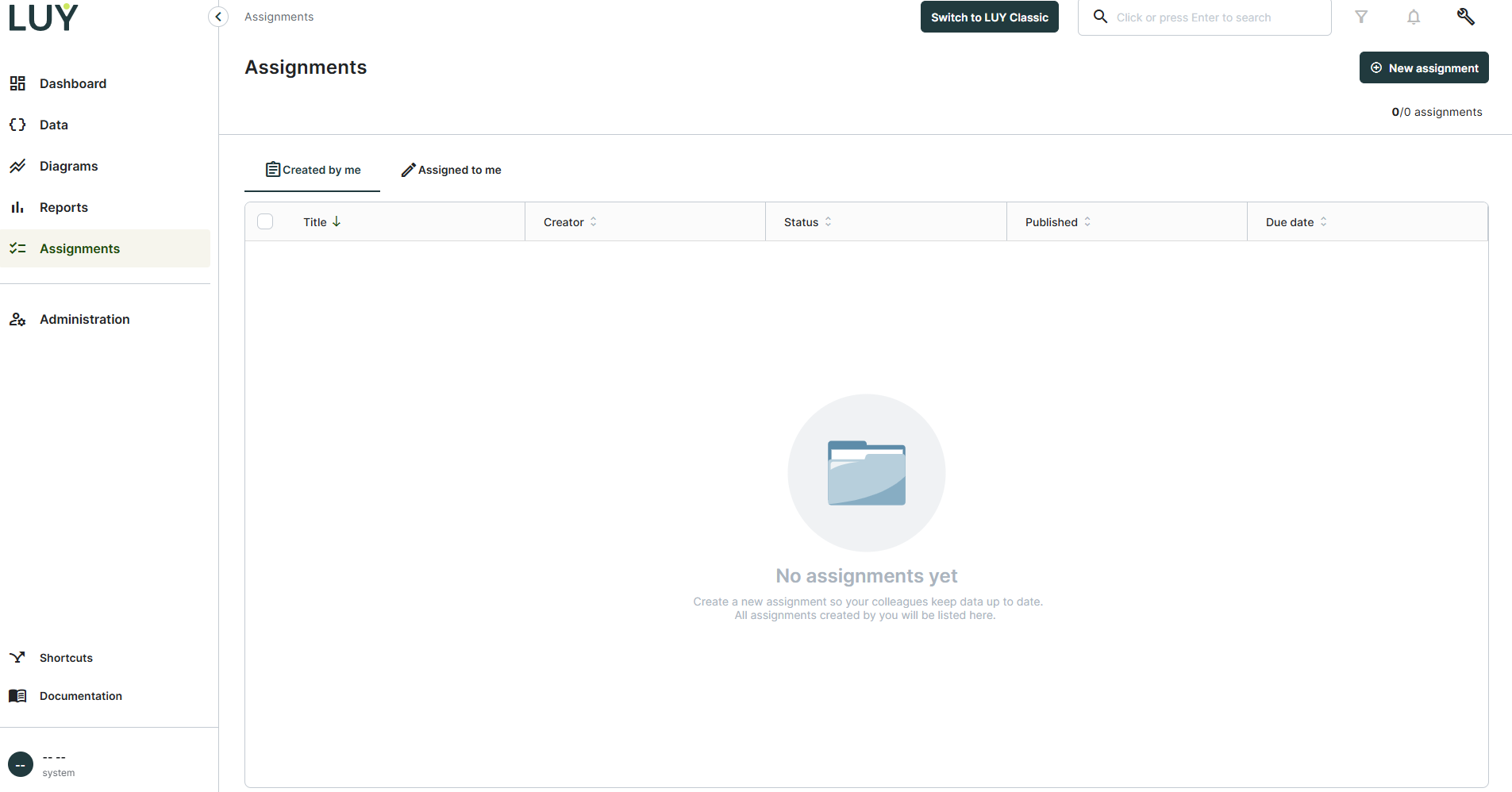
Users with the "Create Nova assignments" functional permission can create and manage assignments. Users with this permission see the Created by me tab and the New assignment button. Users without this permission only see the Assigned to me tab.
The Assignments feature provides the following capabilities for pilot customers:
-
Create assignments: Define which elements and attributes need updating, assign responsible users, and set a due date through a five-step guided workflow.
-
Draft auto-save: Progress is automatically saved at every step, allowing assignments to be paused and resumed at any time.
-
Permission preview: Review which assignees can and cannot edit each element before publishing. Detailed warnings in the Further info column will be available with the upcoming cloud release.
-
Configurable questions: Add guidance text per attribute while creating an assignment. These questions can already be configured in the pilot version and will become visible to assignees with an upcoming cloud release.
-
Email notifications: Configure invitation and reminder email text in the pilot version. Email delivery to assignees will be activated with the upcoming cloud release.
-
Complete assignments: Assignees update element data in a familiar table view and mark their part as finished.
-
Delete assignments: Deleting assignments that are no longer needed will be available with the upcoming cloud release.
Creating an assignment
Creating an assignment follows a five-step guided process. Your progress is automatically saved as a draft after each step. Saved drafts appear in the Created by me tab with the status Draft and can be reopened at any time.
Step 1 – general
-
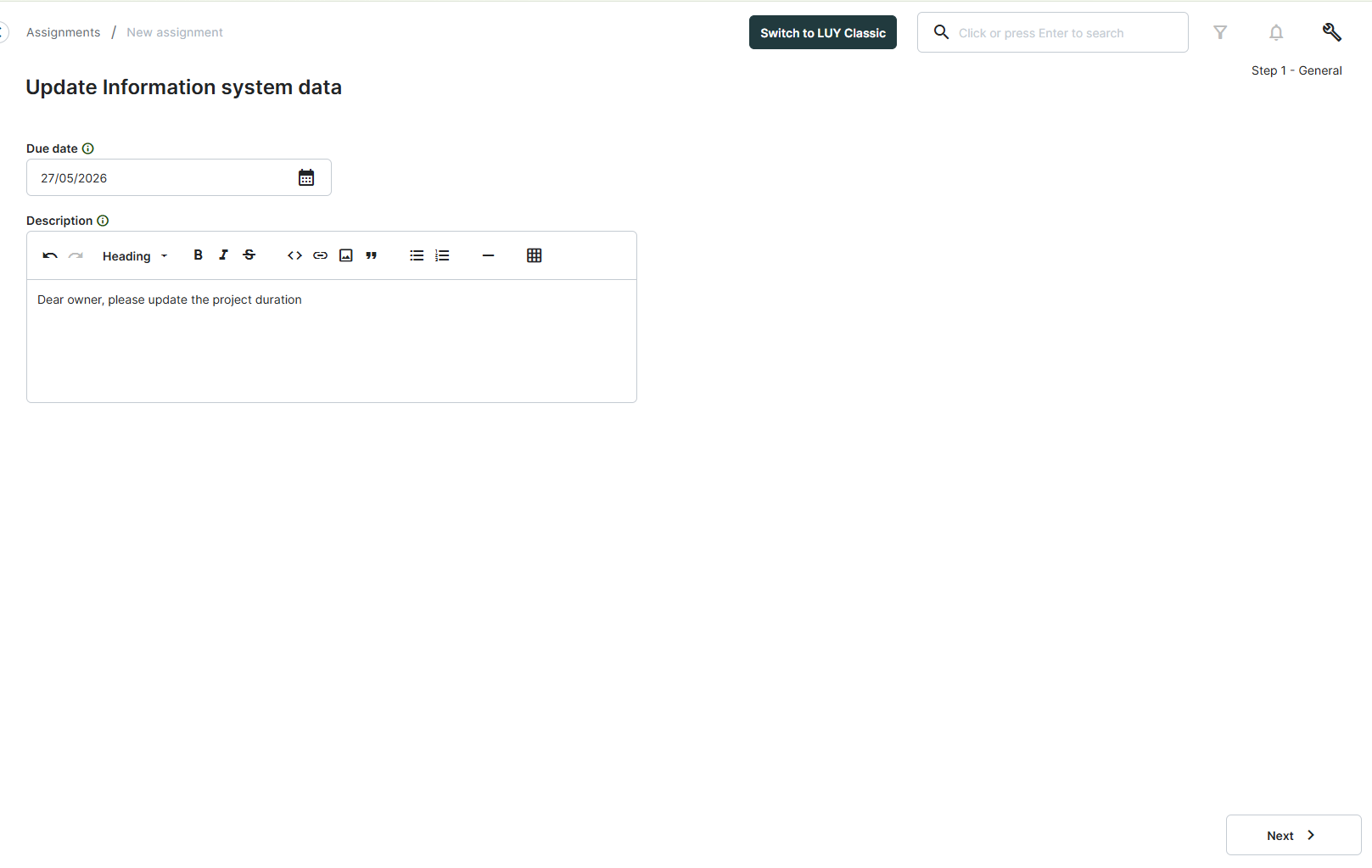
Click New assignment in the top right corner of the Assignments overview page.
-
Enter a Title for the assignment.
-
Add a Description to give assignees context.
-
Set a Due date, which defines the deadline by which all assignees must complete their work. Due dates apply until 23:59 on the selected day. Past dates cannot be selected.
-
Click Next to save and proceed.
Step 2 – data & assignees
Element type
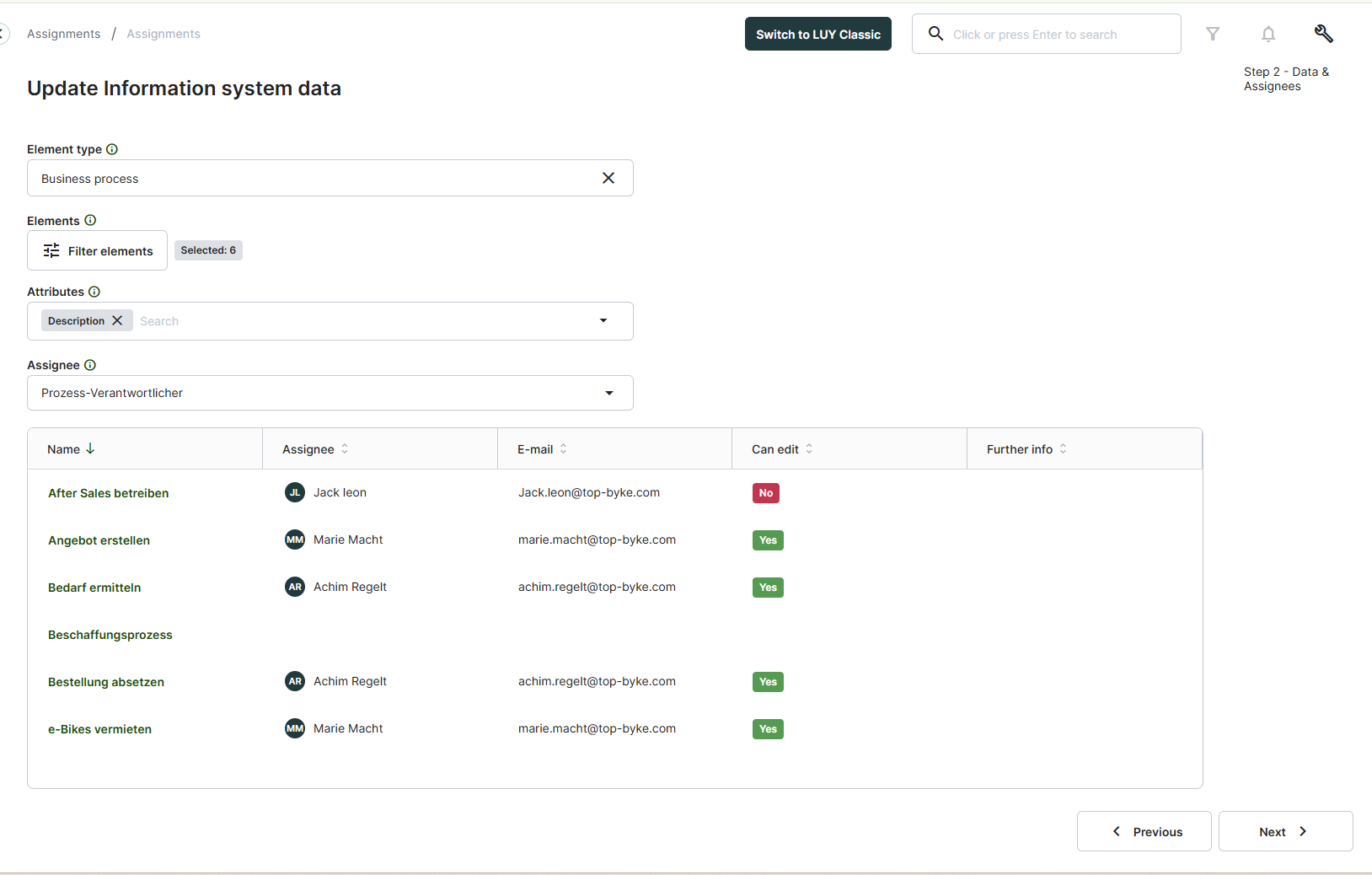
Select the element type the assignment covers, for example information system. Only element types with a configured responsibility attribute can be selected. Element types without a responsibility attribute are shown but disabled. To make an element type available, go to Administration > Attributes and assign a responsibility attribute to it.
Elements
By default, all elements of the selected type are included in the assignment. Clicking Filter elements opens the advanced filter to narrow the selection to a specific subset. A badge next to the button shows how many elements are currently selected.
Attributes
Select the attributes that assignees should review or update. All custom attributes assigned to the selected element type are available, as well as the built-in Description attribute.
Responsibility attribute and assignee preview
The selected responsibility attribute determines the assignee for each element. The preview table shows each element, the assigned user, and whether the user has edit permission for that element.
|
Column |
Description |
|---|---|
|
Name |
Element name |
|
Assignee |
User set via the selected responsibility attribute |
|
|
Assignee's email address |
|
Can edit |
Whether the assignee has write permission for this element |
|
Further info |
Coming soon: Warnings for issues that may prevent the element from being updated. This information will be shown with the upcoming cloud release. |
With the upcoming cloud release, the Further info column may show the following warnings:
-
No assignee - No user is set in the responsibility attribute for this element. Assign a user to the element to include it in the assignment.
-
No edit rights - The assignee does not have write permission for this element. Grant them the appropriate permissions in the administration section.
-
No email address - The assignee has no email address and cannot receive notifications. Assign an email address in user administration.
Once warning details are available, resolving them before publishing will help ensure that all intended elements can be updated by the assigned users.
Step 3 – questions
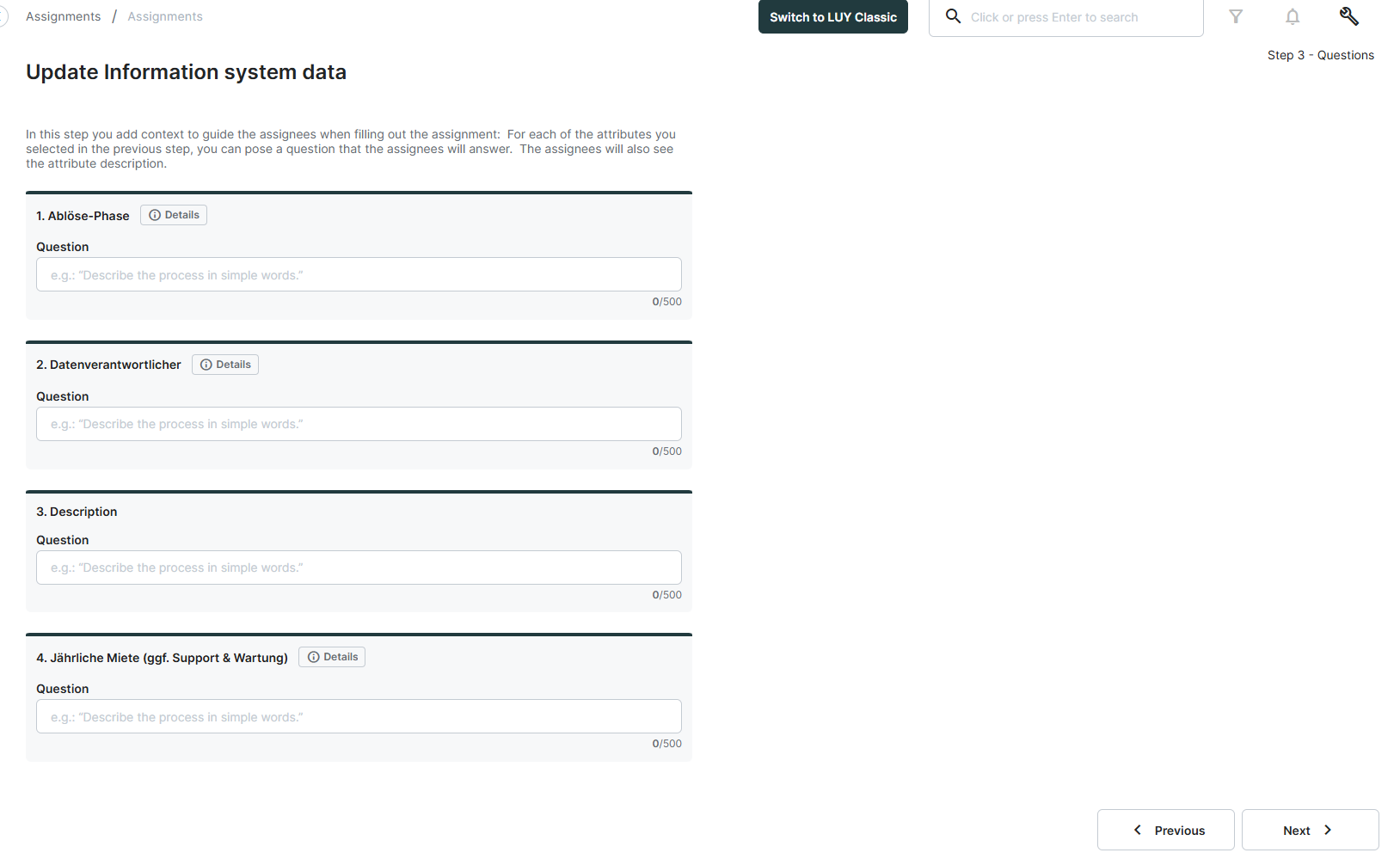
For each attribute selected in the previous step, an optional question or description can be added. In the pilot version, these questions can already be configured while creating the assignment. They will become visible to assignees with the upcoming cloud release.
For example, for an Annual Rent attribute: "Please check with the Finance department for the current figure."
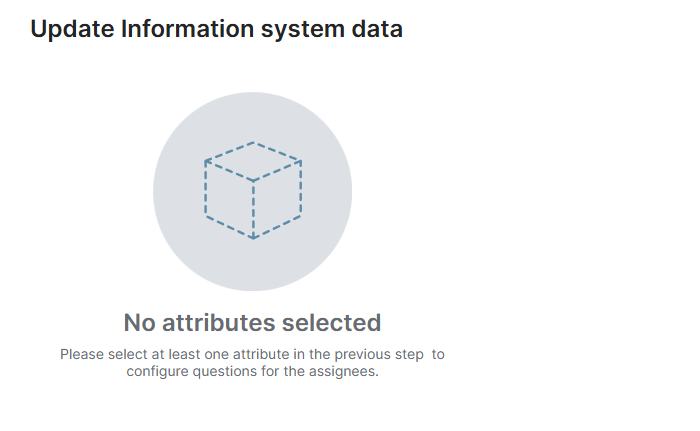
If no attributes were selected in Step 2, a placeholder is shown on this page.
Step 4 – emails & reminders
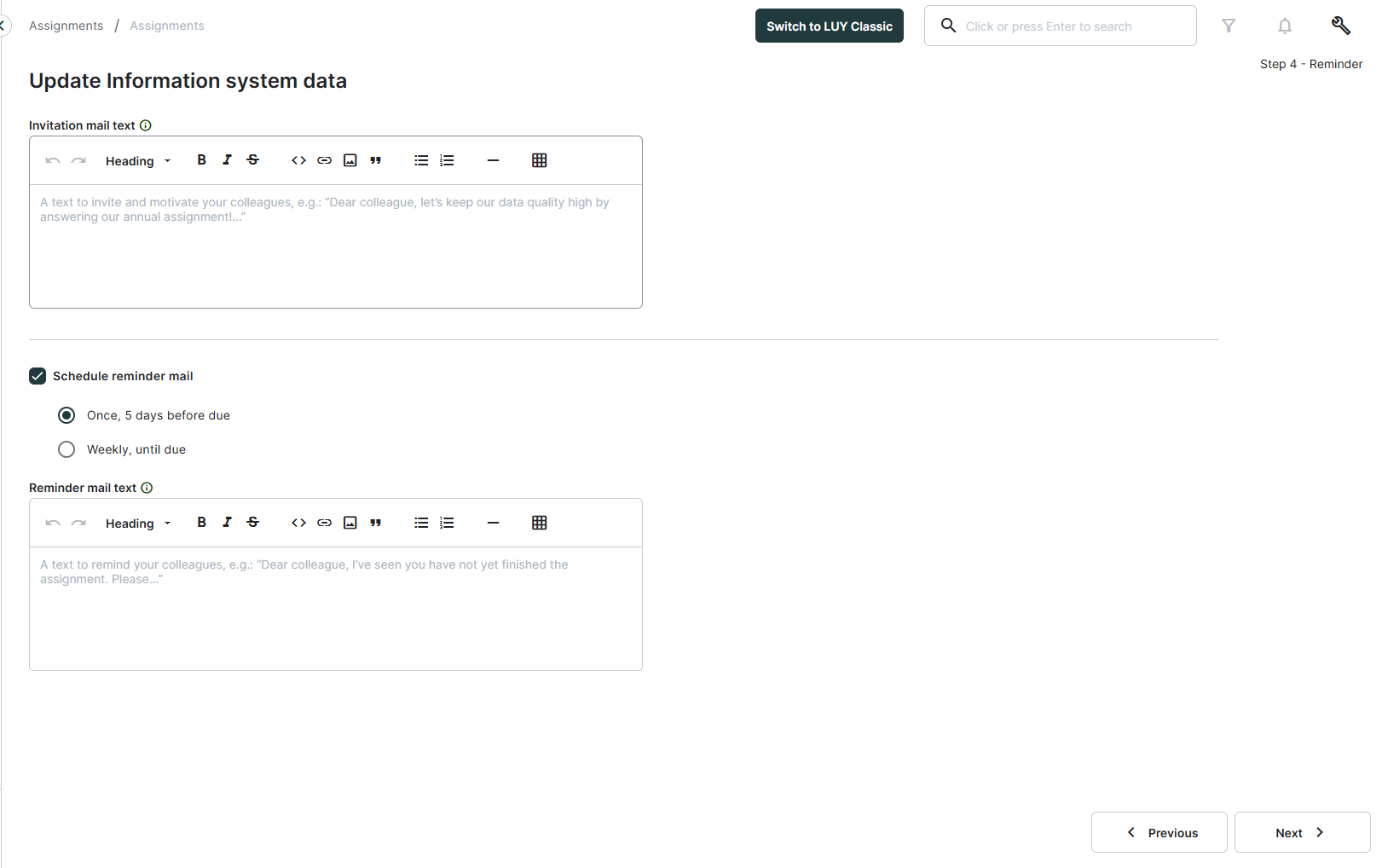
In the pilot version, you can configure the invitation and reminder email text while creating an assignment. Email delivery to assignees will be activated with the upcoming cloud release.
The Schedule reminder mail option lets you configure reminder emails with two frequency options:
|
Option |
Sent out: |
|---|---|
|
Once, 5 days before due |
A single reminder will be scheduled 5 days before the due date. If that day falls on a weekend, the reminder will be scheduled for the preceding Friday. |
|
Weekly, until due |
A weekly reminder will be scheduled on the same weekday as the due date, continuing until the due date. If the due date falls on a weekend, reminders will be scheduled for the preceding Friday. |
Custom text can also be added to the reminder email. This text will be used once reminder emails are sent with the upcoming cloud release.
Step 5 – summary & publish
The final step displays a summary of all configured data: title, due date, description, element type, selected attributes, responsibility attribute, and assignee count.
-
If any assignee is missing edit permissions, the assignee count is highlighted in yellow.
-
If any mandatory fields are missing, the Publish button is disabled. Hovering over the button shows a tooltip explaining what still needs to be set.
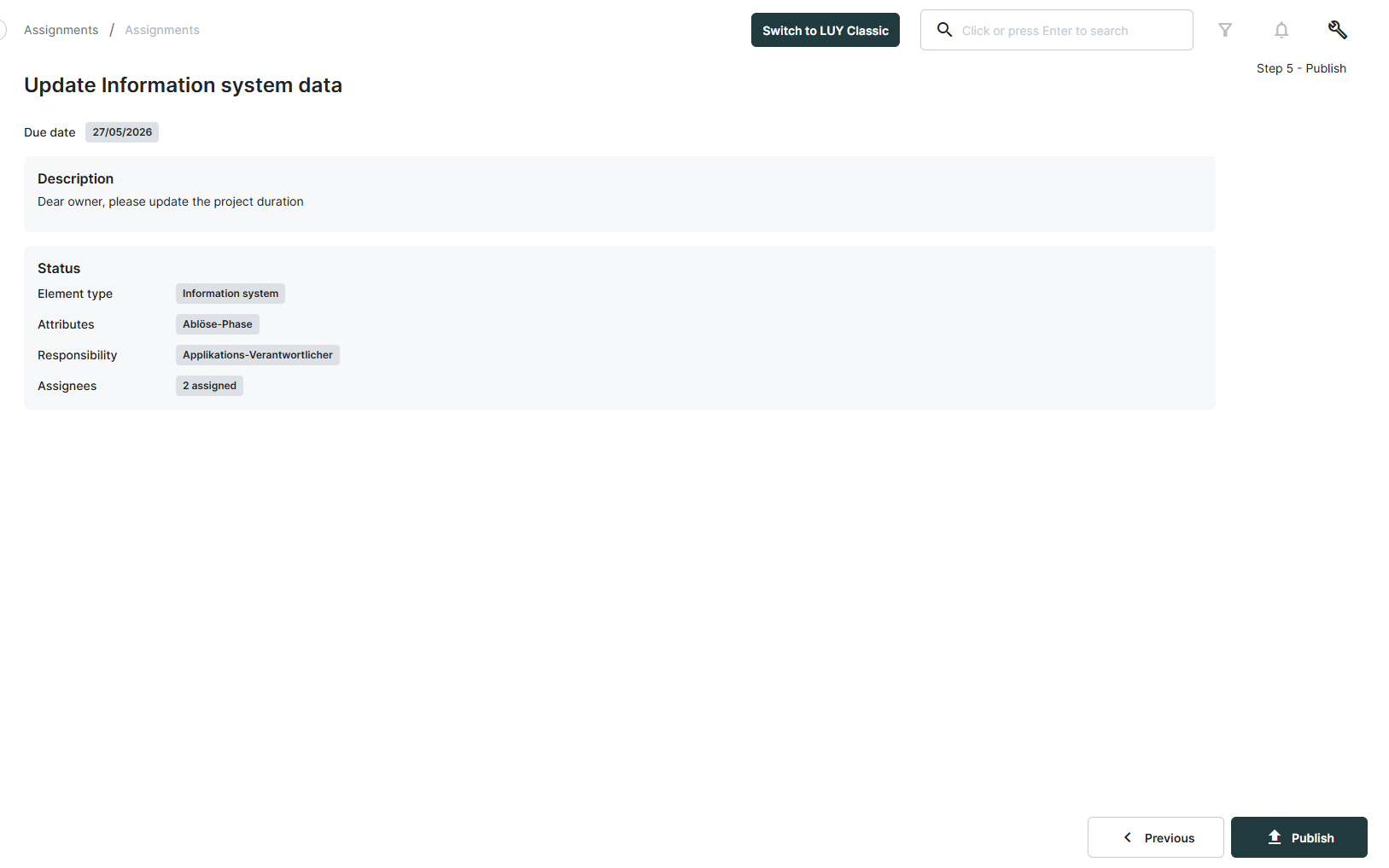
Click Publish to open a confirmation dialog. After confirming, the assignment status changes to Open and the assignment becomes visible to the selected assignees in their Assigned to me tab. Email notifications will be sent automatically once email delivery is activated with the upcoming cloud release.
Once an assignment is published, the element type, attributes, and assignees cannot be changed.
Completing an assignment
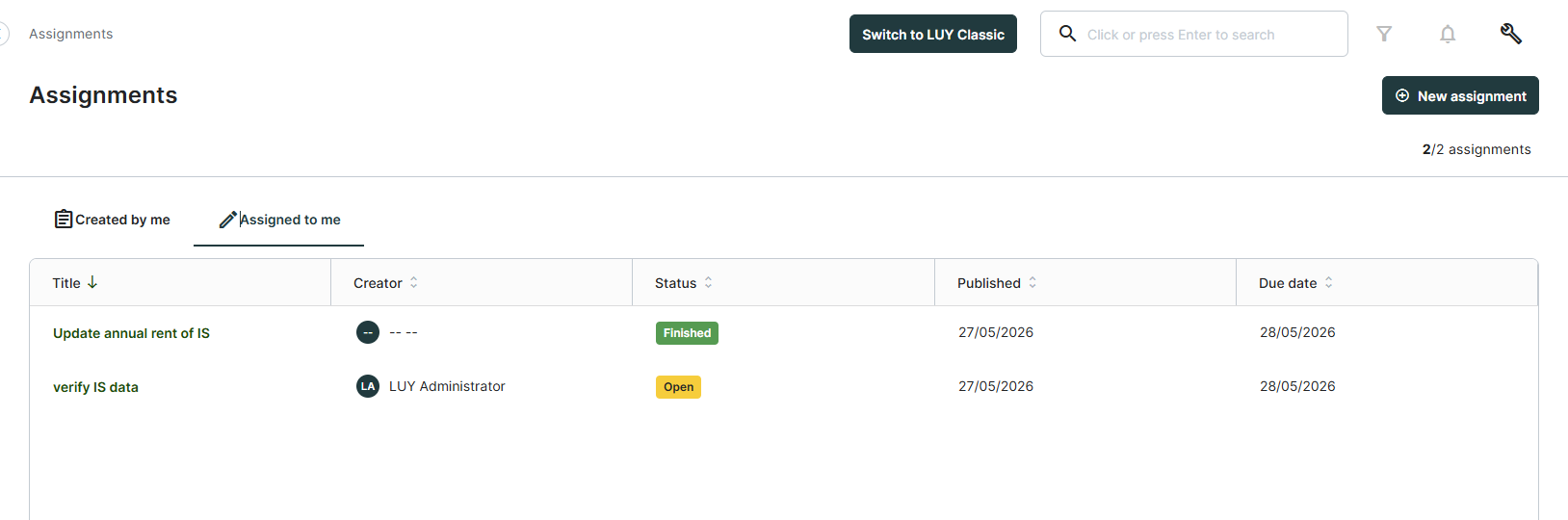
Open the Assigned to me tab on the Assignments overview page to see all assignments assigned to you. Only assignments with the status Open are clickable.
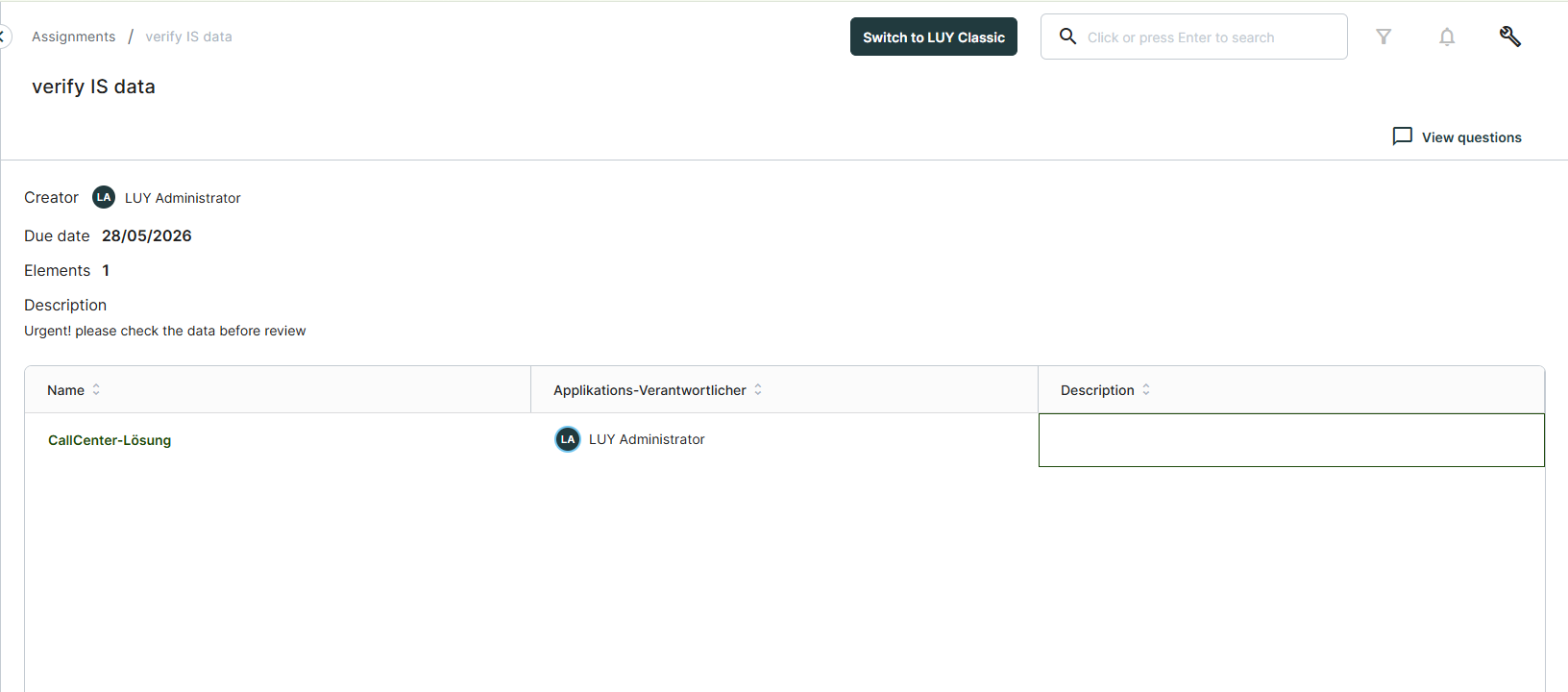
Click an open assignment to view its details, including name, due date, number of elements, and description. The editable table of elements is shown below the assignment details
To complete the assignment:
-
Review and update the attribute values directly in the table cells. The editors work the same way as in the standard table view.
-
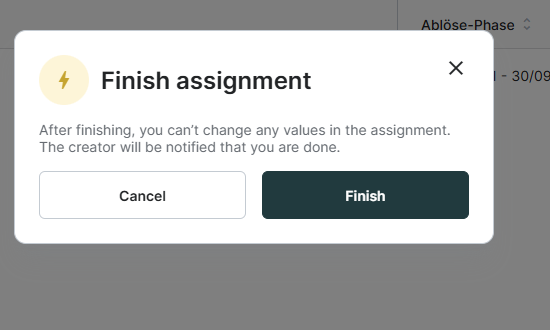
When all updates are done, click Finish at the bottom of the page.
-
Confirm the dialog to mark your part as finished.
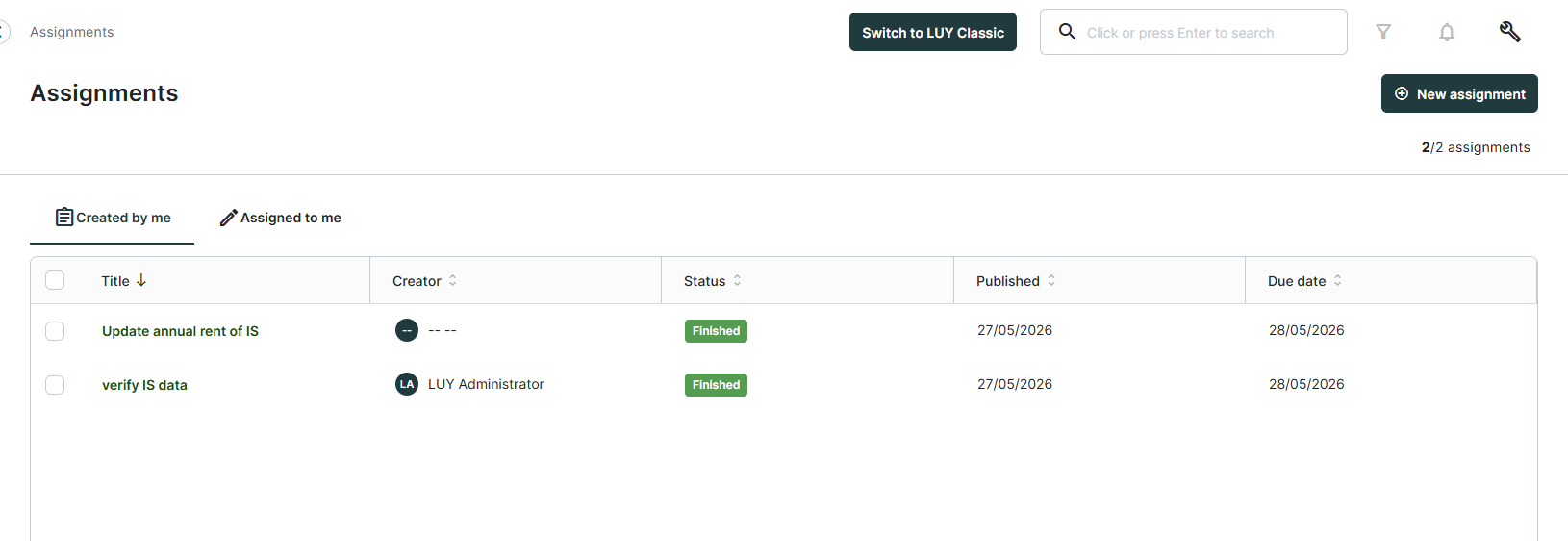
AAfter finishing your part, you can no longer edit your assigned elements in this assignment. The overall assignment status changes to Finished once all assignees have completed their part.
A question mode for stepping through elements one by one and answering per-attribute questions will be available with the upcoming cloud release.
Assignment detail page
With the upcoming cloud release, clicking the title of an open or finished assignment in the Created by me tab will open a detail page. The detail page will show the start date, due date, description, element type, attributes, and responsibility attribute. It will also include two tabs listing all elements and all assignees with their individual completion status.
In the pilot version, clicking a draft assignment redirects to the creation workflow so you can continue editing the draft.
Deleting assignments
Deleting assignments is not yet available in the pilot version. With the upcoming cloud release, assignments can be deleted from the Created by me tab. You will be able to select one or more assignments using the checkboxes and click Delete in the toolbar. A confirmation dialog will appear before the deletion is executed.
Assignment status
|
Status |
Meaning |
|---|---|
|
Draft |
The assignment is being configured and has not been published yet. |
|
Open |
The assignment has been published and is in progress. |
|
Finished |
All assignees have completed their updates. |
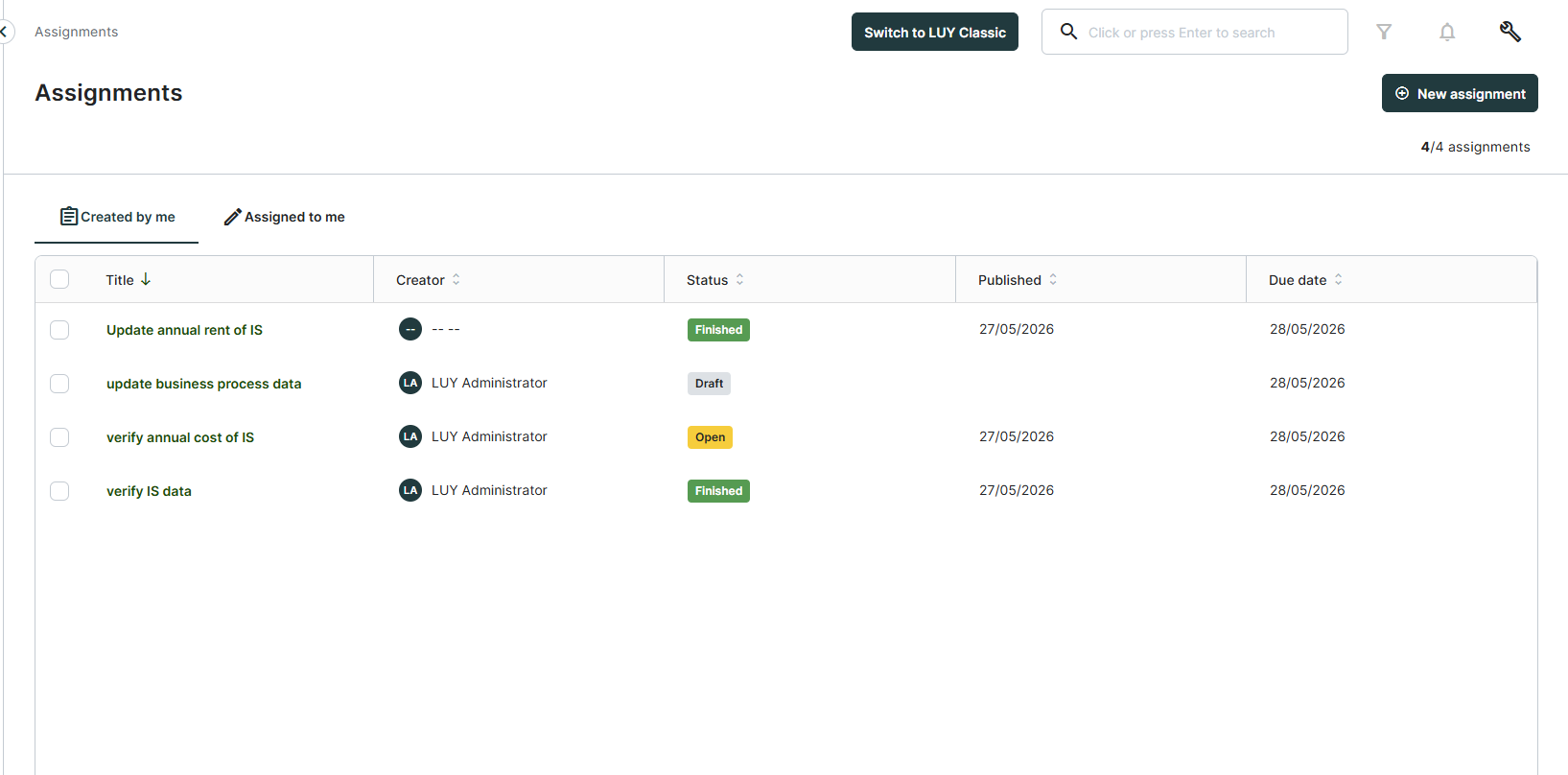
The Assignments overview has two tabs:
-
Created by me: Lists all assignments you created, with columns for title, status, published date, and due date.
-
Assigned to me: Lists all open assignments assigned to you, with columns for title, creator, status, published date, and due date.
Administrators (users with the role LUY_Supervisor) can view all assignments across all creators. For administrators, the overview table includes an additional Creator column. Deleting assignments will be available with the upcoming cloud release. An additional Creator column is shown in the overview table for administrators.